Parameters (and Variables) defined in both SAP HANA and SAP BW data sources are presented to users when they open up Calculated Views or InfoCubes. Parameters in both technologies are set before the main analytical queries are executed and can drive a variety of logic and functionality ranging from security and filtering to logic configuration and display.
The parameter dialog presents parameters as they have been defined in the underlying data source. Pyramid reflects each parameter type, its settings and options exactly as configured in either BW or HANA. The effect of each parameter is unknown to Pyramid, and is passed on to the SAP system for its own internal execution requirements.
Parameter Dialog
When a data model that contains parameter configurations is opened (from any relevant app), the Model Parameter dialog (as shown below) is automatically presented to users.
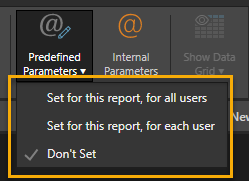
You can also reopen this dialog later by selecting Predefined Parameters (orange box below) from the Report ribbon in Discover. This allows you to change any previously configured settings.

Dialog Features
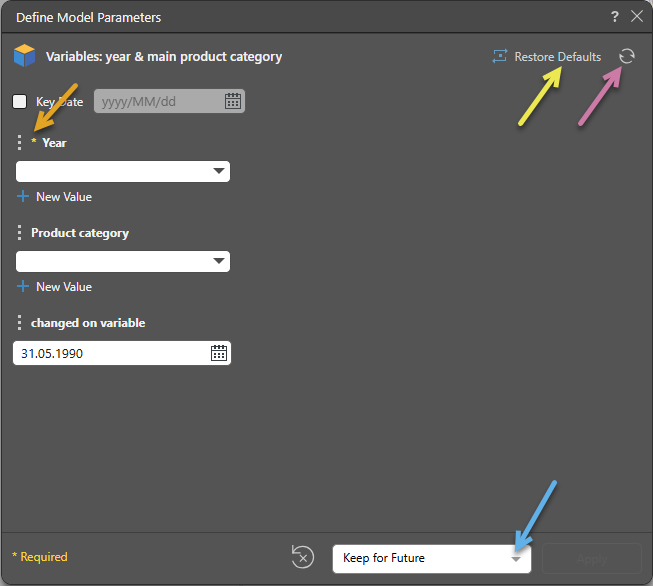
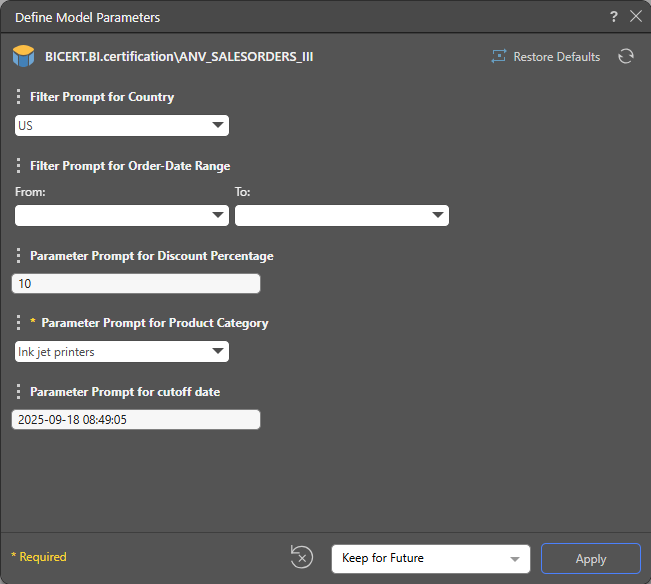
The Parameter Dialog is similar for both BW and HANA. The first image below ID shows a BW example, the second shows a HANA example. Apart from common UI elements, such as dropdown lists, text boxes, multiple selections, multiple parameter settings, the dialog has these settings in common for both data source types:
- Parameter refresh (purple arrow below): Reloads all parameter values and default settings.
- Restore Defaults (yellow arrow): Restores all changed parameter prompts to their original default values. Alternatively, you can do this for each prompt individually, using the restore option on its context menu (see below).
- Required Flag (orange arrow): The asterisk (*) indicates those prompts that are mandatory. The user will not be able to Apply their changes until all mandatory items have been selected.
- Saving Parameter Choices (blue arrow): Allows the user to decide if and how to save their choices for the parameters for the future (for more information, see below).
BW dialog example
HANA dialog example
Parameter Prompts
The type of prompts available will depend on the type of parameters that have been defined and configured in the data source.
- In the BW example above, the first parameter after key date is a list of years, while the second is a Product list from the product category hierarchy, consisting of Bikes, Clothing, Accessories, and Components.
- In the HANA example above, the first prompt is a country filter, while the last prompt is a text box asking for a cut off date (a default value has prepopulated this box for the user). The third is another text box requiring discount percentage.
Prompt Capabilities
The other unusual prompt variations are shown below.
From-To
Users may be presented with a From-To prompt, where they need to pick a starting and ending value (or element).

Another From-To prompt type is show below, where users are asked to first pick a comparison operator (teal arrow), and then make subsequent selections in the from-to dropdown lists based on the operator choice. If enabled, they may also be presented with the option to add more than one such condition (blue plus).

Multi-Set
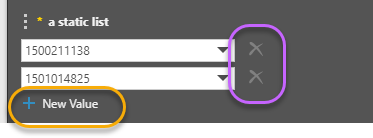
Multi-set prompts allow the user to add more than one prompt selection using the blue plus (orange box below). Users can also delete these options using the delete button (purple box below).
Date Time
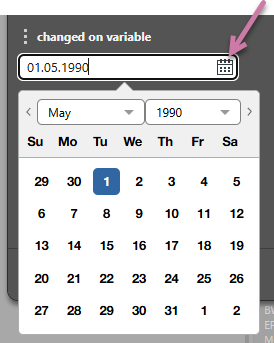
If the prompt is date time in BW, the user may be presented with a calendar picker instead of a simple dropdown list (red box below). This can be changed back to a classic dropdown list in the options menu (see below).
Other Parameter Options
Depending on the parameter type (and data source), clicking on the prompt's menu (purple arrow below) will allow the user to change the settings for the parameter.
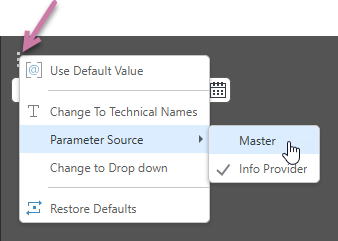
- Use Default Value: Instead of supplying a specific value for the parameter, the user forces the system to get the latest default value and use it instead. This only works if there is a default value. if blank values are submitted, it may produce errors instead.
- Change to Technical names (BW only): Switches the parameter caption to its technical version.
- Parameter Source (BW only): Allows the user to switch the engine that provides the parameter's values.
- Change to Drop down (BW date-times only): Allows users to switch the calendar view for date-time parameters to a simple dropdown list.
- Restore Defaults: Resets the parameter to its original setting.
Saving Parameters
Pyramid makes re-using both SAP BW and HANA parameters easy by allowing users to save their prompt settings both for themselves and for others (if designing content for other users).
Personal Settings
These options are provided when the parameter dialog is opened for each user. These settings are effectively "model" level and not specific to any given report.
- Apply Now Only: The settings made you choose are used once only for the current exercise. They are not saved for the next time the parameter dialog is opened.
- Keep for Session: Your selections will be saved for the current user for 24 hours when accessing the given view or model. After 24 hours, you will be prompted to choose new parameter selections.
- Keep for Future: Your selections will be saved and will always appear in the parameters dialog whenever the report or model is opened.

Report Settings
These options are saved into the content item (Discover report). They are most relevant when making setting choices for yourself or others who may open this same content. These settings are effectively "report" specific.
- Set for this Report - for all Users: Your selections will be saved for all users who access the report. When any user opens the saved report, they will not be prompted to input SAP Parameter values.
- Set for this Report - for each User: Your selections will be saved for yourself. When you open the saved report in the future you won't be prompted to input SAP Parameter values. However, any other user will prompted to define their own Parameters inputs when opening the report.